USB-C Hubs for Modern Laptops
Disclosure / Affiliate Notice:
As an Amazon Associate I earn from qualifying purchases.
Some links in this article may be affiliate links that earn me a commission at no extra cost to you.
A new laptop often looks clean and minimal when it comes out of the box. One or two USB-C ports sit on the side, sometimes alongside a headphone jack, and that’s it. The design feels elegant until the first work session begins: an external monitor needs a connection, a keyboard and mouse require ports, and suddenly there is nowhere to plug anything in.
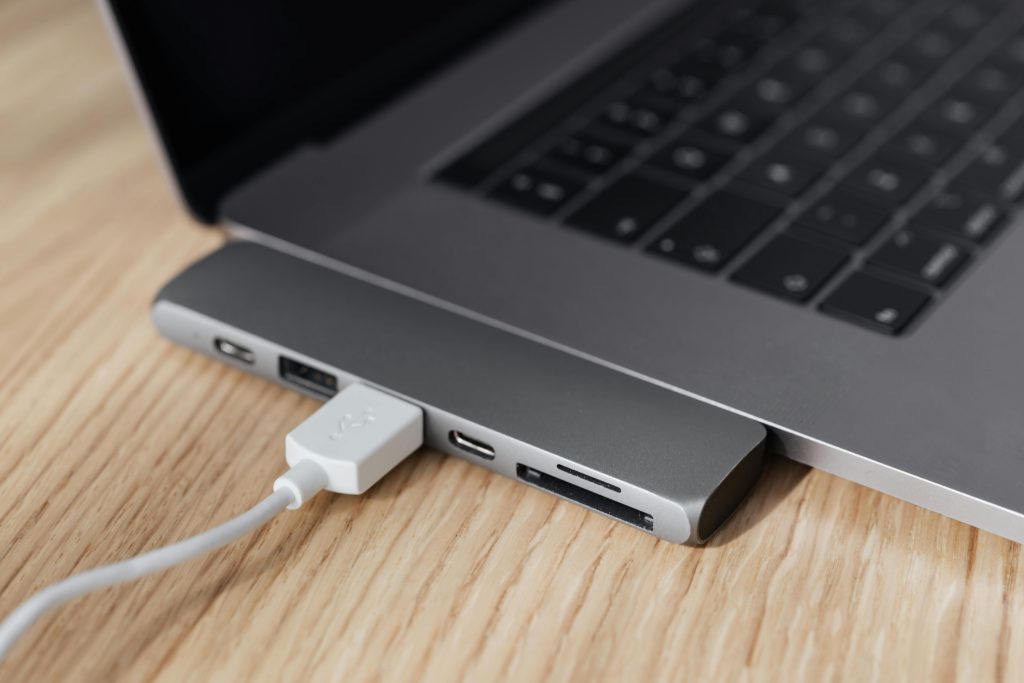
This is the moment many people discover USB-C hubs. Instead of relying on multiple built-in ports, the laptop connects to a single hub that expands into several different connections at once.
Understanding how these hubs work helps avoid the common frustration of buying one that looks right but doesn’t actually support the devices needed.
Why modern laptops rely on USB-C
Manufacturers moved toward USB-C ports because they combine several functions into one connector. A single port can handle:
- data transfer
- video output to external displays
- charging the laptop
- connections to accessories
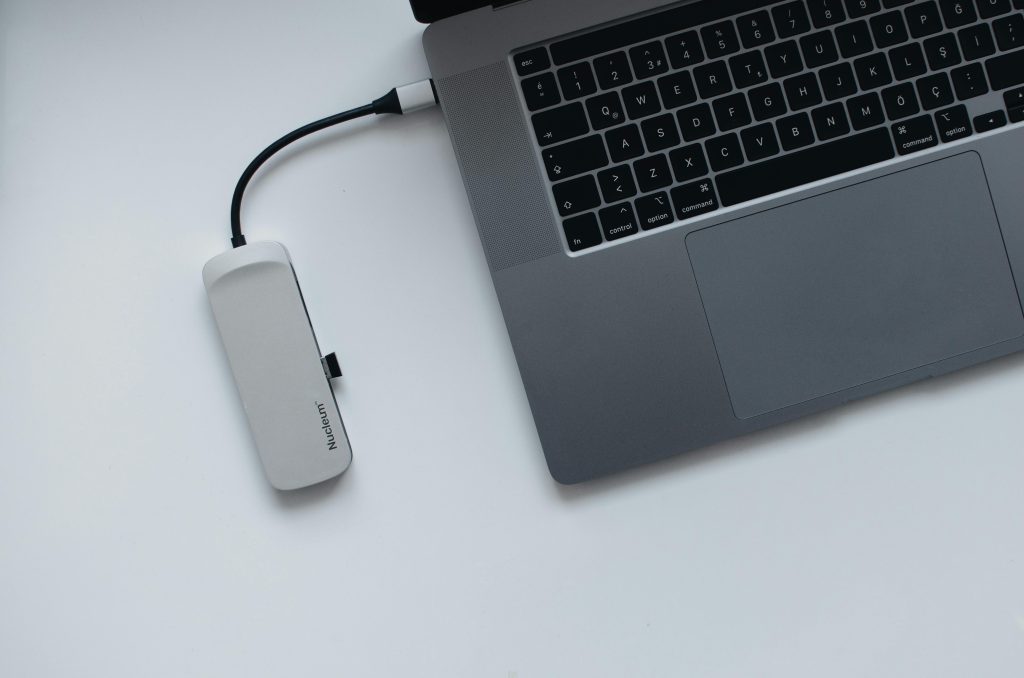
This flexibility allows laptop designs to stay thin while still supporting complex setups. The trade-off is that users often need an adapter or hub to access traditional connections like HDMI, USB-A, or Ethernet.
The USB-C hub acts as a translator between the modern port and older peripherals.
The difference between adapters and hubs
Not every USB-C accessory performs the same role.
Single-purpose adapters convert one connection type into another. For example, a USB-C-to-HDMI adapter only allows a monitor to connect.
USB-C hubs expand the port into several connections at the same time. A typical hub might include:
- multiple USB-A ports
- an HDMI output
- an SD card reader
- a USB-C charging pass-through port
This allows the laptop to connect to several devices through a single cable.
👉 multiport USB-C hub adapter (affiliate link) [AFFILIATE_LINK]
The important point is not the specific device but the concept of turning one port into a small docking station.
Video output limitations
External monitors are often the main reason people buy a hub, but not every hub supports video in the same way.
Video output depends on two things:
- whether the laptop’s USB-C port supports DisplayPort or Thunderbolt video
- whether the hub itself includes a video controller
When both conditions are met, the hub can send video to an HDMI or DisplayPort monitor. If the laptop lacks video support through USB-C, the hub cannot create it.
This detail is easy to miss because many hubs physically include an HDMI port even though compatibility depends on the laptop.
Charging through the hub
Many hubs include a power delivery pass-through port. This allows the laptop’s charger to plug into the hub instead of the computer directly.
The hub then distributes power:
- part goes to charge the laptop
- part powers connected accessories
This setup keeps the laptop connected with a single cable. When the cable is unplugged, the entire workstation disconnects at once.
However, not all hubs support high charging wattages. Some are designed only for light accessories and cannot pass through enough power for larger laptops.
Portable hubs vs desk docking stations
USB-C hubs generally fall into two usage styles.
Portable hubs
- small and lightweight
- designed to travel with the laptop
- usually include fewer ports
They are common for people who work between home, office, and cafés.
Desktop docking stations
- larger and heavier
- often include Ethernet, multiple monitor outputs, and more USB ports
- remain permanently on a desk
In that setup, the laptop connects to the dock with a single cable while all peripherals remain attached to the station.
The choice depends more on work habits than on technical features.
Heat and cable placement
USB-C hubs concentrate several electronic components in a compact space. During heavy use—especially when driving external displays—they can become warm.
Most designs dissipate heat through aluminum housings or vented casings. While this rarely causes problems, it does affect where the hub sits on the desk.
Placing the hub on a hard surface with open airflow prevents unnecessary heat buildup and keeps cables from bending sharply at the connector.
When the hub becomes part of the daily routine
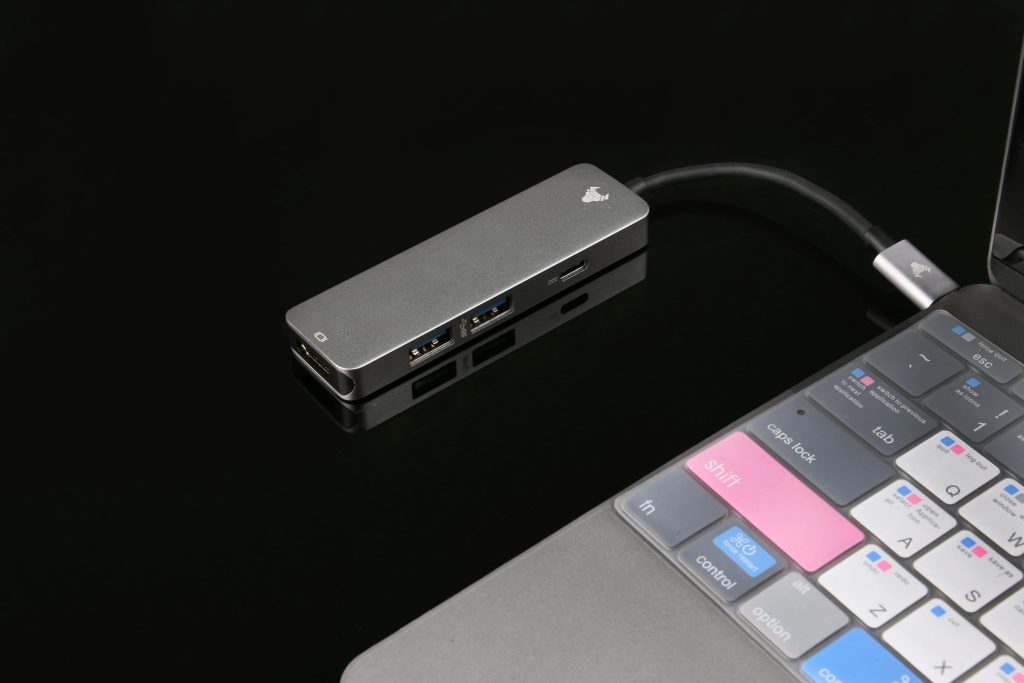
At first a USB-C hub feels like a workaround for missing ports. After a few days, it often becomes the center of the workstation.
Keyboard, monitor, storage drives, and charging all connect to one small device. The laptop itself turns into something closer to a detachable screen and processor.
The moment that single cable disconnects and the entire desk setup shuts down at once, the reason for the hub suddenly makes perfect sense.
Disclosure / Affiliate Notice:
As an Amazon Associate I earn from qualifying purchases.
Some links in this article may be affiliate links that earn me a commission at no extra cost to you.